Showing posts with label room. Show all posts

Sunday, February 6, 2022

e-EQE 2022: Room/Technical Requirements and Creating Evidence

EQE2021: David x
Updated 10 Mar 22: clarify that you need to print before starting FLOWlock Browser. See comments in blue for important points from EPO info session on 8 Feb 22. The list is also found in the Comments section below. Updated 7 Feb 22 to add note about requesting more time after an issue and updated FAQs. Updated 6 Feb 2022 to correct web pages.
On Fri 4 Feb, EPO published an updated Instructions to Candidates on the official EQE online page (OJ 2022, A20). These include updated Room and Technical Requirements. The official EQE FAQ page has also been updated.
On the official EQE Notices & Downloads page, there is a related Code of Conduct (19 Feb 21 - not yet updated). On the official EQE online page, there is also an EQE Data Protection Statement (updated 8 Dec 2021). See below for my comments.

All candidates need to read these (don't just rely on me 😉), especially the updated ItC. Comply with the spirit and letter of all the regulations and instructions, before during and after the exam, even if you think them trivial. If you are worried about compliance with any of these requirements, or you have medical issues that conflict, try to solve them yourself as much as possible, then contact the helpdesk@eqe.org before the exam. Your goal should be to prevent problems as much as possible - see separate post. It is recommended to make a checklist for yourself, like this one from Adam Hope, and print out the ItC to keep with you during the exam on your desk. I have also made a schedule with the timings and main actions for each EQE2022 exam.

1. Environment (Feb 21)
  • ItC IV.4 - New deadline: log-in 60 mins BEFORE the first flow on each exam day. 
    • Recommended - this will give you extra time to sort out any problems before the exam, and to prepare your room and desk. It is also a safety margin if you have to travel to take the exam. After clicking on the correct exam flow, you enter the flow page, where you can print any documents and start the FLOWlock Browser.
  • Print BEFORE starting the FLOWlock Browser: 10 minutes before the start of the exam, any printable documents will appear on the flow page. Click on the refresh icon (clockwise arrow) or press F5 to see them. 
  • Early camera check: It is possible to start the FLOWlock/LockDown Browser in the flow page up to 60 minutes before the exam to test your camera and microphone by performing the ID check. If you do not need to print, you can just stay in the Browser, waiting for the exam to start. 
    • If you need to print using that computer, you must exit the Browser, restart your internet browser, log back in to WISEflow, and enter the flow page again. You will also need to perform the ID check again whey you restart the FLOWlock Browser.
    • It is also possible to print using a second computer logged into WISEflow, but this second computer must be turned off and out of reach during the exam.
  • No email with hyperlink will be sent to start exam this year. Candidates have to log in to WISEflow themselves.
  • ItC V.4, 6 - During the exam, you need to stay in front of the camera - in other words, keep your face and ears within camera view, and don't talk or make noises. Not covered by caps, scarves, sunglasses, other body parts, etc. Eyeglasses with clear lenses are permitted but only where used as vision aids. 
  • ItC V.2 - invigilators may perform checks to inspect your examination environment
  • ItC II.2 and IV.9 - The room needs to be quiet and well-lit for the invigilation. 
  • ItC II.2 and IV.12 - Room doors must remain closed during the examination. You must be alone, no other person (or animal) is allowed to be in or enter the room. 
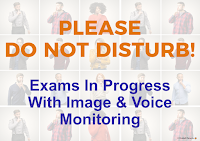
  • Put a Do Not Disturb notice on the door. If someone comes in by accident, send them out immediately - type a short comment in the chat widget, and report it in detail after the exam. Our Do Not Disturb notices also include full schedules for the exams, including the breaks.
  • ItC II.3 - Cover any see-through wall or door in the room through which another person might be able to see your screen 
    • Paper, card or opaque plastic may be used on the inside (see the picture above)
  • ItC II.3, 4 - To ensure correct facial registration, any window, mirror or other shiny or glossy surface or parts of these which are located behind you (i.e. facing the screen) must be covered. There must not be any light source pointed at the camera from behind you to keep the image clean. The background behind you in the image must not have any portraits with faces visible to the camera. Bookshelves behind your head during invigilation is not a problem. They don't need to be covered.
  • ItC II.5 - Listening to the radio or playing any other sound or music is not allowed. 
  • ItC IV.11 - Apart from the computer system (screen, keyboard, mouse, etc.), router and printer needed to take the examination, no other electronic devices (e.g. calculators, digital watches, smartphones and smartwatches) are permitted unless explicitly allowed by the Examination Secretariat in advance.
    • ItC IV.9 - no prohibited equipment may be "within reach". In other words, not within reach when you are sitting in front of the camera, keeping your face and ears within camera view.
    • Prohibited equipment may remain in the room if it is turned off and completely out of reach.
  • ItC II.7 and IV. 4 - You may use any printed materials, e.g. books, and any documents you consider useful for answering the examination papers. Prepare your desk before the exam.
    • Don't put posters on the wall that you wish to refer to. Looking at them could be considered a "suspicious look" - ItC VI.3.
    • Everything needs to be within reach without moving out of range of the camera.
  • ItC II.6 - Food, drink and medications are allowed. Standard, non-electric/non-electronic desk accessories are allowed (notepaper, pens, pencils, etc.).
  • Calendars are no longer provided with the exam. It is assumed that you either access the overviews of closed days published (once or twice per year) in the OJEPO during the exam, or print them yourself before the exam.
  • Answers to an earlier exam part written in a later exam part will not be marked.
  • Copy/pasting sections from legal references give no marks. It is considered equivalent to just including a reference. You are awarded marks for applying the law.
2. Hardware / Software (Feb 22)
  • It is strongly advised NOT to do exam from office using a company computer on a company network
  • ItC III.1 - read latest technical recommendations on official WISEflow page (epo-wiseflow.ladesk.com/772936- Lockdown-computer-recommendations). iPads may not be used. 
  • ItC IV.2, 3 - ensure WISEflow and LockDown (FLOWlock) browser are up to date. 
  • New requirement: you must verify the software at least once in the morning BEFORE each exam. 
    • To verify: after logging-in to WISEflow, click on the drop down menu next to your name and select "Edit profile" and "Test Browser". This will start the FLOWlock / LockDown Browser, and check that it is up to date. 
  • ItC II.4(a), IV.7 and IV.10 - The microphone must capture the sound around you and must be connected and active throughout the examination. Audio verification is required before you can access the flow. 
  • ItC II.4(b) - The camera should be positioned centred above or below the frame of the active monitor, but not more than 5 cm away from it. The camera is to be oriented to show a frontal portrait image of you when you are looking at the screen. It must not be covered at any time. 
  • ITC II.4(c) - Speaker settings must be adjusted so that sounds from the internet browser are audible and left on for the whole exam. Internal laptop speakers are fine if they are loud enough.
    • Invigilators can "beep" to get your attention through the chat widget, even if you are not on the first (editor) tab. 
  • ItC IV.5 - print as soon as parts are available. Refresh the page before launching FLOWlock Browser.
    • After opening the flow, refresh the internet browser page to see when the printable files become available. Use the REFRESH icon or F5.
  • ItC IV.11 - You are not allowed to use earphones, headsets or other, non-electronic noise-cancelling devices, such as earplugs. 
  • ItC II.5, 6 - Candidates are not allowed to use shortcuts (ALT+TAB, CTRL+P or similar), key combinations and touchpad gestures, except Ctrl+C, CTRL+V, CTRL+Shift+V, CTRL+F (and the corresponding Mac shortcuts)
    • these are the only shortcuts guaranteed not to crash the LockDown (FLOWlock) browser. This is a very safe list. See separate post for shortcuts that I have tested, but be aware that the sensitivity of each computer can be different. You need to determine yourself the degree of risk that you are willing to take. Mechanically blocking ALT and WINKEY should be considered to prevent accidents.
3. Create Your Own Evidence
  • Disclaimer: these are my general impressions, and will not cover all individual cases. I am not a lawyer, and this is not legal advice. If you are worried, then talk to your mentor or contact helpdesk@eqe.org
  • The intention of the rules is to provide a framework to sanction anyone who seriously breaches the rules or tries to cheat. If you do your best to comply with the spirit and letter of all the regulations and instructions, there should be no problems. AI proctoring is used together with people, so unexpected issues can be dealt with using common sense.
  • Last year, they were more flexible with rules, but they have more experience and they will be stricter. No unscheduled breaks during Pre-Exam, D1-1, and D1-2. In other parts, no breaks until 45 mins. Max. 3 mins for unscheduled breaks.
  • You can be asked by invigilators at any time to make a room scan with your camera. It will not be asked as a standard step for all candidates.
  • But different to in-person exams, potentially suspicious behaviour will be flagged by AI software. All the audio / visual / computer / network / keyboard / mouse inputs from each candidate are analysed after the exam (ItC VI.2, 3) and compared to other candidates (in 2021, approx. 1000 candidates for PE and approx. 2400 for some Main Exams). Decisions are not taken solely on these flags - the flags and the data collected will always be reviewed by the responsible EPO/epi members and they will contact you first. They also have your answers, how you answered, the speed and order of answering, and chat interactions for analysis and comparison.
  • And different to in-person exams, if you accidentally breach an instruction, you may not be warned. The invigilators can see real-time some of the data, but they will mainly be using video and audio (ItC V.2), and probably occupied with major issues and individual emergencies. So, if you are not contacted by an invigilator, that does not mean that no issues were detected by the system.
  • Read the EQE Data Protection Statement (version "_LS" - 08 Dec 21) on the official EQE online page, so you know who is retaining what data, and your right to access, rectify, erase and receive your personal data, as well as restrict its processing or object to the same. 
    • Reference is made to the EPO Guidelines for Protection of Personal Data. I could find them last year, but they seem to have been replaced by an amended EPO web page: Data protection & privacy. I cannot find the Article 13 & 14 being referred to in the EQE Data Protection Statement.
  • In general, personal data is deleted max. 30 months (2.5 years) after exam, or after appeal. Facial images, audio and biometric data deleted after 6 months, but if suspected misconduct or appeal, EPO will make a copy and retain for max. 30 months (2.5 years).
    • Consider creating a reminder by filing a PCT application on the day of each exam 😂.
  • You can expect that the rules will be interpreted in good faith, but the evidence being used is based on the data collection and AI. You are likely to be the only witness that you have complied with all the rules, but you do not control the data that is collected. 
  • If you are contacted days, weeks or even months after the exam, you will have forgotten a lot of details. So, put yourself in the best position to defend against being unfairly flagged. But don't go crazy - these are just all tips I could find. At least do something - any evidence is better than none. And hope you don't need it.
  • Report any issues or conflicts with regulations BEFORE the exam. Make PDF copies of the emails.
  • Prepare alternative and back-up solutions, and test your system as much as possible. 
  • Keep your mentor updated on any problems, and make sure they know the exact circumstances you are taking the exam. Preferably, they should also see your environment either in person or by video chat. If the mentor agrees, record the video chat with a time and GPS stamp. Or with photos with time and GPS stamp.
  • Before each exam, before you put your phone away, make a video with time and GPS stamp of the room, desk and computer. Include your point-of-view as you will take the exam, 360 degrees around, up and down. Under the desk, on top of the desk. Behind the monitor. Explain to yourself what everything is, and how they comply with the requirements. Mention anything you removed to comply with the requirements. Also include the ID you will be using. If there are glass walls and windows, show that they are covered. Show where the doors are, and what is on the other side. Still pictures are also possible, but a video is stronger evidence. If possible, include a witness or get someone else to film you. It should only take 5 minutes.
  • Put your phone out of the room (you don't want it to accidentally ring). Preferably, give your phone to someone else to keep during the whole exam. Don't record video and/or audio during the exam as this itself is a breach of the rules.
  • During the exam, if something happens that could be flagged, report it in the invigilator chat and make a note on paper so you don't forget. If you interact with an invigilator, write down the name of the invigilator. Do not close the chat before you have received an answer. You can minimise the window with "-". The chat is present in the editor tab, but it remains active when you are on another tab.
  • If appropriate for the issue, ask politely for more time in the chat. This is technically possible (they did give extra time for everyone for D1-1), but I don't know what the EQE policy is. I have not heard of any EQE2021 requests being granted in individual cases, but it does give them a chance to compensate in some way. Whatever the outcome of the extra time request, focus on the rest of the exam, and finish as much as possible to give them something to mark. 
  • Request a transcript of your chat by clicking on the option BEFORE the chat closes, and entering your email address. It gives you a full timestamped history. 
  • AFTER the exam, report any issues that happened during the exam as soon as possible. They take everything into account, but issues will not always result in extra marks.
  • If have made notes on paper or annotated printed pages, store them safely and scan them in. Store the unedited videos, photos and files somewhere safe. DON'T send the helpdesk your videos, photos and files.
  • Create official evidence using a third party. You should know how to do this for clients when they need to register something confidentially for copyright, trade secret, right of continued use or NDA purposes:  
    • i-DEPOT - upload up to 100MB of one or more files (any format), create and register a certified pdf, BMM retains it for 5 years, you can download a copy of the certified copy. (EUR 40). The certificate is officially recognised as an electronic signature by judges in all 27 EU countries. 
    • WIPO PROOF - store the files yourself unaltered, no file size limit, create and register a digital fingerprint, store and verify the fingerprint yourself (free)
    • truetimestamp.org -  create a SHA-2 hash fingerprint yourself . They have their own register of certificates (free).
  • Consider requesting a copy of the data they collected as described above (although it can take 3 months or more to get it)
  • If you are accused of suspicious behaviour, don't just send all your videos and files and hope for the best. Talk to a colleague or mentor. You will need to respond seriously, offering to supply selected parts of the evidence. Handle it like receiving a "cease and desist" letter.
Click on READ MORE>> for more analysis

Wednesday, February 2, 2022

Mock Exam: 3 Feb 2022 0930-1700 => last chance to test your setup

Updated 3 Feb 22 during Mock. Thankfully, the technical and functional issues with WISEflow and LockDown Browser are much less than last year. But candidates can still have individual issues due to hardware / software incompatibilities or disabled permissions. 

WISEflow now has a list of computer recommendations, and provides user guides and troubleshooting. Experience form last year is that you will have the least chance of technical issues if you use a dedicated desktop with one screen (at least 27 inch), one camera, one microphone, one keyboard, one mouse, one loudspeaker device, one printer, direct wired (USB/HDMI) connections to all peripherals, administrator access, cabled (LAN) access. The most chance of issues were with a corporate laptop without administrator access, laptop with an internal and an external camera, intelligent firewalls, or active virus scanners.

Use this LAST CHANCE to test your setup to make sure that you will not have any technical issues during the exam, even if you have already participated in an earlier Mock. At least join at the start of the session to run through the ID checks, and participate for an hour or so to check that the webcam and monitoring continue to work. The currently available mock flows will remain open until 6 March 2022, but you will not be able to test on your own with full invigilation.

The Pre-Exam mock will use Pre-exam (2021): Part 3 only. The Main Exam flow will be a single flow with all 2021 exams (A, B, C, D) - you may use any of the papers. 
  • The participant password is: abc
Things to do and to check:

  • Turn off screensavers, sleep/hibernate functions, scheduled tasks like virus checking and backup, and delay windows updates.
  • Printing. As in the real examination the printable parts will be made available approximately 10 mins before the start of the flow (you might have to refresh your browser page).
  • Taking entry images. Hold your valid ID card or passport into the camera, next to your face. 
  • Video and audio surveillance. Try the integrated chat widget (human invigilation will however be very limited). 
  • If you have a technical issue during the mocks, contact the invigilators using the chat widget. If this is not working, these are mocks, so you can also ask in the EQE Telegram Groups for advice. 
    • If you are kicked out and need to get back-in, enter WISEflow and start the flow (Lockdown Browser) and complete the ID check (if necessary). The chat widget appears bottom right before you are asked for participation or administrator passwords. So, you can access it from any computer with an internet browser where LockDown Browser is also installed.
  • The invigilator password was not shared in the e-mail, so you will have to request it from the invigilators if you have technical issues. The invigilator password is needed to enter the flow after the start, or to exit early. There are also other WISEflow functions that can be accessed when instructed by an invigilator, such as saving or printing.
  • Practice using the External references to see if they can be accessed. You should also try to search in the EPO Guidelines using Advanced Search, and navigate to the National Law tables. Browser shortcuts that work on my Win10: SHIFT+LEFT MOUSE (open in new tab), F5 (refresh - or use icon), ALT ← & ALT → (backward & forward - or use icon), SPACE or PAGE DOWN (scroll down), SHIFT+SPACE or PAGE UP (scroll up), HOME & END (top & bottom of page), jump to pdf bookmarks using toolbar icon, CTRL+SCROLL MOUSE (zoom - or use icon, or (i) options), CTRL+A, CTRL+C.
  • Practice opening tabs, copy/pasting into your answer, and searching in the exam. Try not using the computer for 10 minutes to see if your screensaver or sleep/hibernate freezes the system.
  • Test commands and actions that you may need, such as Winkey-SPACE for changing keyboard layout, F5 (or click on Refresh icon), CTRL-ALT-DELETE to allow a different network selection.
  • When you have practiced enough with the exam, you can see whether some of the actions that caused problems last year will still cause you to be kicked out. For example, using ALT-TAB and multiple-finger gestures on a touchpad. 
    • On my system: hitting ALT-TAB ONCE generates a warning that it is an unauthorised action, and if repeated will require the adminstrator password to continue.

Tuesday, December 21, 2021

EQE 2022 bug fixes, and lessons learned from EQE 2021

During the annual EQE Tutor's meeting on 19 & 20 Oct 2021 (online this year), EQE 2021 was discussed in detail, as well as the expectations of changes to be implemented for EQE 2022. The general approach is to slowly improve the issues: each change needs to be thoroughly tested to make sure improvements work reliably and do not make things worse. I have now tried the updated WISEflow platform and summarised the most important points and tips relevant for EQE 2022 based on the meetings and the experiences from candidates last year.

1. General advice:

  • Watch the EPO’s EQE pages for updates: EPO EQE online page, EQE Notices & Downloads, EQE FAQ's
  • Join the EQE Telegram groups to discuss issues with other candidates: Main group (283 members), Study group (108 members), ABC&PE-claims (167 members), D&PE-legal (137 members) and Marketplace (58 members). The groups are public, and open to any tutors or candidates. A few rules: treat others with respect, no discussion of cheating, no exchange of large sections of copyrighted materials (use of excerpts for study and discussion allowed). During scheduled exams, no discussion of the exam questions or answers. During mocks, no restrictions.
  • WISEflow and LockDown browser provide limited possibilities compared to daily online working, so practice as much as possible with them.
  • Do as many mocks as possible, even if you have not had any problems before. If short on time, at least do the initial part where the photos are taken and the flow is started. 
  • Practice using the External references, and decide beforehand what will be faster to look up on paper, and what will be faster online. 
  • Maximise your typing speed by taking an online typing course and using a comfortable keyboard / mouse. Become less dependent on answering on paper.
2. General IT advice = avoid issues
  • Although helpdesk will be available and there are possibilities for complaints and even appeal, any issues during an exam will cause at least 20 minutes to be lost, and there is a minimum amount for marking that you must hand-in to be awarded a pass. So, it is better to avoid issues as much as possible.
  • Lockdown browser is designed differently to other apps - it is not designed for stability, but to continuously monitor and to crash when something suspicious is detected. On startup, certain applications are closed. During operation, anticipated "forbidden" actions are blocked. But there will always be situations that are unexpected and unanticipated, particularly when running on the many different hardware/software configurations.
  • Software is being continuously updated, so past positive results during mocks do not guarantee that you will have no issues during the exams. 
  • Least chance of issues if you use a dedicated desktop with one screen (at least 27 inch), one camera, one microphone, one keyboard, one mouse, one loudspeaker device, one printer, direct wired (USB/HDMI) connections to all peripherals, administrator access, cabled (LAN) access.
  • Don't use: hardware and apps you do not need, VPN (changes to IP address crashes LockDown Browser), and docking stations/port replicators.
  • Turn off: screensavers, sleep/hibernate functions, scheduled tasks like virus checking and backup, and delay windows updates.
  • Most chance of issues: corporate laptop without administrator access, laptop with an internal and an external camera, intelligent firewalls, or active virus scanners.

 3. Advice about EQE 2022 Exams

  • Expect the 2022 exams to look very similar to the 2021 exams. Making exams takes 2-3 years in total, so the EQE 2022 exams cannot be fully adapted to the online format. It is not easy too split an existing exam into parts. EQE 2021 exams also had this problem - splitting was done by the relevant committee under responsibility of the Examination Board.
  • The version of WISEflow and LockDown Browser available at Christmas 2021 will be the final one.
  • More than one answer is frequently accepted (decided after the exam). But you can still fail if you are an acceptable answer track, and don't hand in enough to be marked. Make sure you hand-in as much as possible. 
  • B exam will be still be difficult because you cannot easily compare - no side-by-side viewing of tabs.
  • C exam will be difficult because of the split into two parts.

4. WISEflow and LockDown improvements for EQE 2022

  • Current version: LockDown Browser 2.07.07 - 18 Dec 21
  • Can now annotate exams when opened in a tab. Comments can be added, text can be highlighted, shapes can be added. These annotations are visible in all tabs where the exam is opened.
  • Opening too many tabs used to longer crash the LockDown Browser. The maximum number of tabs depends on the display size. Now, a warning is generated that tabs must first be closed before new tabs can be opened.
  • Can now apply strikethrough to text in the answer to be handed in.
  • Copy paste seems to me to be improved. However, this is a problem where they do not understand what the cause of the problem is, so it is not certain it will work well on all exams.
  • The invigilation has been integrated into a green hover button/window which remains on top in the answer tab. 
  • Language switching of assignment has been changed to avoid the D1.1 problem in 2021.
  • Side-by-side viewing of tabs is still not possible. Only the exam preview window can be viewed next to the answer tab, which is very limited in functionality.
  • Pre-exam: the three languages have been separated in the questions, but not in the answers.
  • ALT-TAB caused problems last year with crashes after being entered twice. It was stated during the 2022 exams that that it will just have no function. I have not seen any any problems during the mocks. I will try again in the full-function mocks in January.
Click READ MORE for other comments from Tutor's Meeting

Thursday, June 3, 2021

EQE 2022 - preparation and top bugs that need to be fixed

Update 21 Jun 21: I have also made some of these points in epi Information 02/21
EQE 2022 has been announced (OJ 2021, A44), and it has been confirmed that the EQE will be online, it may be taken at any suitable location, and WISEflow will be used again. The exams will take place over two weeks: 
  • Tu 08 Mar 22 - D Exam / Th 10 Mar - A Exam
  • Tu 15 Mar 22 - B Exam / Th 17 Mar - C Exam / Fri 18 Mar - Pre-Exam
No details yet on which other software will be used or whether changes will be made in the room and workspace restrictions. But based on EQE 2021, taking an exam is likely to require: 
  • an exam browser, such as LockDown Browser
  • continuous AI-assisted camera and sound invigilation, so you must be visible in the webcam field of view for long periods
  • online invigilation, such as Zendesk

So, EQE 2022 candidates can already plan ahead:

  • Keep an eye on the EPO’s EQE pages for updated details: EPO e-EQE page, EQE Notices & Downloads, EQE FAQ's
    • don't read through all the details from EQE 2021 - much of the info was provisional, a lot is repeated, and it is likely to change or be consolidated
  • At least one mock should be expected in Jan / Feb. Reserve the time and take part - you must use these opportunities to test your system, and to check for individual problems with your hardware/ software
  • Think digital for taking the exam: 
    • a key skill is now typing speed. Take an online typing course and get a comfortable keyboard / mouse
    • become less dependent on paper. Get comfortable reading work documents electronically, especially PDF.
  • Look for resources that support working digitally
    • websites that allow questions to be viewed and answered digitally, such as Practice EQE
    • EPC and PCT books which are digital – a few, like EPC.App and PCT.App can even be annotated digitally and printed. 
  • But be prepared to have your references availableon paper. During EQE 2021, access was provided to the electronic resources on the EPO website only, but it is not yet clear what will be available in 2022.

There were many issues in 2021 with the new exam platform. These are my top bugs that must be fixed for EQE 2022:

  • Digital highlighting of exam pages
    • this was not available at all for exam pages. Some highlighting was possible for the own answer.
    • it is essential when reading off a screen to be able to keep your place, to note things you have used and/or things you need to use
    • candidates should not be wasting their time copying large parts of the exam to their answer just to apply highlighting
  • Copy/paste into the answer without losing formatting
    • copy/paste was possible, but some or all formatting was often lost,
    • this was especially poor with Apple computers
    • candidates should not be wasting their time reformat excerpts
  • Side-by-side previewing of exam pages, allowing correct copy/paste and highlighting
    • copy/paste was only available between different tabs
    • candidates should be able to answer in the same way that they are used to when working digitally
  • Too-limited digital External References during the exam
    • the EPO website was available, with searching
    • this must be extended to include WIPO to avoid every candidate printing out 2000 pages of the PCT Applicant’s Guide
  • Zendesk automatically logging out during the exam
    • candidates had to keep checking every 20 mins and logging back in
    • this should not be necessary.
  • Camera and microphone, once tested, should function throughout the exam
    • many candidates were interrupted by Zendesk during the exam because LockDown Browser had disabled their webcam. the camera tested during startup of LockDown Browser should not be disabled.
    • there should be an automatic warning if the camera and/or microphone is unexpectedly not working

Other improvements needed for EQE 2022:

  • lnclude an optional "digital exam desktop"
    • so that candidates can prepare PDF's and upload them for use during the exam
    • some EPC/PCT books are already digital, and many recommended EPO / WIPO references are only available digitally 
    • allow searchable text of such PDF's, as you have in real-life, for all digital references. Being able to search broadly does not help as much as you think. Only with knowledge can you search quickly and precisely to pick out what you need.
  • Find a more effective way of communicating with candidates than e-mail
    • where follow-up questions can be posted. For example, a forum, Twitter, or Telegram chat groups 
    • be more open about how the exams will be adapted to the platform
  • Provide a technical helpdesk and forum 
    • to solve network and access problems well before the exam
    • especially for company networks and laptops, where candidates will not have Administrator rights.
    • run an early beta test using a large number of external candidates and/or tutors to iron out the bugs
  • Don't make it harder than it needs to be for those with En/Fr/Ge as a 2nd language. 
    • Since 2017, an extra 30 mins was added to each Main Exam so that mainly non-native speakers would have more time. But this is no longer enforced, and it is clear from the 2021 B and C Exams that this time has just been absorbed by more material. 
    • So, have a non-native review team for each exam from the countries who have a good language level, but not the highest. Sorry - no Dutch, Swedish or Danish etc. doing the English :-). They also need to test whether the exams can be made in time.
  • For exams that are split, like the C Exam, subject-matter must be properly separated between parts. 
    • The length of the current exams can be reduced by removing overlap and repetition. For example: 
      • A Exam: reduce subject-matter, focus mainly on independent claims, and provide less prior art.
      • B Exam is not realistic with client giving you claims. Go back to the old format, reduce subject-matter, only include a few claims, and provide less prior art.
      • C Exam has much repetition in attacks. Include fewer claims, and provide a lot fewer documents.

Wednesday, February 24, 2021

e-EQE 2021 Mock3 - Experience & Tips

https://wiseflow.zendesk.com/hc/en-gb/articles/360018952959-Facial-Recognition-automated-proctoring-fact-sheet-
© UNIwise
On 23 Feb Mock3 was held as an extra test mainly for your setup: 
  • 0930-1300 CET ME (B only - not a new paper, but Mock2)
  • 1530-1640 CET - PE (one flow - not a new paper, but Mock1, Mock2)
Mock3 was your last chance to test under close-to-exam conditions. Different to Mock2, was the availability of an increased number of invigilators to help with problems and some monitoring of candidates (this picture is old - it is missing the audio/voice monitoring). See below for my comments on things that seemed new, and notes from the many messages I got before, during and after.

1. Resources (check regularly for updates):

2. Telegram group(s)
  • During and after Mock3, members of the main group exchanged tips, discussed problems in close-to-real time and helped each other. This is a very good way to beta-test software.
  • The main group has 210 members, so the conversations were getting a little chaotic. Ignacio has now added 3 more: a summer study group for EQE 2022 preparation, an (ABC+PE claims analysis) group and a (D+PE legal) group. The main group will be more for general issues, and WISEflow + LockDown Browser + Zendesk issues.
    • Mainly for students to discuss with others, but also open to any tutors. Group rules: no discussions of ways to cheat, no exchanges of large sections of copyrighted materials (excerpts, annotated examples, WIPO/EPO docs etc. are allowed)

3. Hardware / software
  • Some problems may be due to using a company computer where you don't have full admin rights. For example, blocked urls, a missing chat window in Zendesk, changing IP addresses, automatic virus scans, screensavers that cannot be disabled, updates that cannot be disabled.  
    • If you cannot solve the problems, you may have to switch to a personal laptop or PC, and either log on to the company guest network, and/or do the exam from a different location.
  • During Mock3, many candidates had problems with the camera turning off after some time during the exam (entry image and initial testing by LockDown Browser were all done successfully). It is not clear why this happens. The LockDown Browser does not generate an error or warning. It should be detected by the invigilators dashboard - if they have time and it lasts too long, they should contact you to find out.
  • If you notice the camera is off (e.g. LED turns off), report it as soon as possible in Zendesk chat (you likely will not know how long it has been off). 
  • Solution (ME): Refresh Browser (Click on browser "refresh" icon top-left). If this does not work, you may need to exit the LockDown Browser.
  • Solution (PE): For Pre-Exam, LockDown Browser works differently - you will need to enter flow AND invigilator password after a refresh before you can continue. So, you need to wait for instructions from Zendesk if you do not have the invigilator password to refresh.  If this does not work, you may need to exit the LockDown Browser.
4. Invigilation
  • Some confusion about the AI monitoring. Surprisingly, the AI does not automatically generate warnings if you move your face out of view or speak. Your camera and microphone are sampled, and the invigilators have a dashboard (see picture above) with the real time status. For example, the degree of facial recognition is monitored. If one of them is "zero" or "low" (e.g. if you move too much), you should go to the top of the list, and they may contact you. But it depends on how busy they are. 
  • When you hear the "bip" sound, you click on the Zendesk chat tab - there are no pop up messages.
  • Not being contacted does not mean that everything you did was acceptable.
  • After the exam, this data is combined with other inputs to generate a profile. All data collected is used afterwards to determine whether suspicious behaviour is suspected. The AI will generate a list of possible suspicious behaviour, which will be further analysed by people. It is the people who make the decisions.
  • Some confusion about Zendesk. You must start Zendesk chat immediately (via External Resources) after starting Lockdown Browser. It must remain activated for the whole exam.
  • However, if Lockdown Browser crashes, you can open a normal browser (Chrome etc) window, go to epo.zendesk.com and login instead. Once you restart Lockdown Browser, you need to activate the Zendesk chat again.
  • More invigilators were available compared to Mock2, and some people chatted with them. They also attempted to solve hardware/software problems with others. People asking for the invigilator password had to typically wait 20 - 30 mins. 
    • during the exam, there will be more invigilators available
    • after 30 mins, any active chat automatically timed-out
  • You can email a transcript of your Zendesk chat (before end of exam and before time-out) by clicking on three dots on bottom right and entering your email address. It gives you a full timestamped history. 
    • But if you or the invigilator leave the chat, then the next contact will create a new transcript which has to be requested separately
CLICK BELOW FOR MORE

Saturday, February 20, 2021

e-EQE 2021: Code of Conduct and creating your own evidence

Updated 26 Feb 21
Updated 23 Feb 21 after Mock 3
Updated 21 Feb with comment on software under ItC 14 and ItC 32.
Fri 19 Feb, EPO published the updated Instructions to Candidates (OJEPO Feb 21), and a related Code of Conduct (19 Feb 21) on the official EQE page. All candidates need to read the latest version: 

  • ItC 43 is an End User Agreement where you implicitly confirm agreement by taking an exam
  • It seems likely that you will need to explicitly accept them as well before the exam (like the UK PEB exams)
  • Also read the Data Protection Statement (v2 - undated), on the same page so you know who is retaining what data, and your right to access, rectify, erase and receive your personal data, as well as restrict its processing or object to the same. Reference is made to the EPO Guidelines for Protection of Personal Data (Apr 19) which is on the Data protection & privacy page. 
    • In general, personal data is deleted max. 30 months (2.5 years) after exam, or after appeal. 
    • Chat content is retained for 120 days (4 months), facial images, audio and biometric data deleted after 6 months, but if suspected misconduct or appeal, EPO will make a copy and retain for max. 30 months (2.5 years).
General comments
  • Disclaimer: these are my general impressions, and will not cover all individual cases. I am not a lawyer, and this is not legal advice. If you are worried, then talk to your mentor or contact helpdesk@eqe.org
  • The intention of these rules is to provide a framework to sanction anyone who seriously breaches the rules or tries to cheat. 
  • If you do your best to comply with the spirit and letter of all the regulations and instructions, there should be no problems.
    • But different to in-person exams, potentially suspicious behaviour will be flagged by AI software. All the audio / visual / computer / network / keyboard / mouse inputs from each candidate are analysed after the exam (ItC 36, 37) and compared to other candidates (approx. 1000 for PE and approx. 2400 for some main exams). Decisions are not taken solely on these flags - the flags and the data collected will always be reviewed by the responsible EPO/epi members and they will contact you first. They also have your answers, how you answered, the speed and order of answering, and Zendesk chat interactions for analysis and comparison.
    • And different to in-person exams, if you accidentally breach an instruction, you may not be warned. The invigilators can see real-time some of the data, but they will mainly be using video and audio (ItC 25), and mostly occupied with major issues and emergencies (which includes being unable to do the exam because the Browser is locked). So, if you are not contacted by an invigilator, that does not mean that no issues were detected by the system. 
Measures you can take to create evidence 
  • You can expect that the rules will be interpreted in good faith, but the evidence being used is based on the data collection and AI. By complying with all the rules, you are the only witness. 
  • You will forget a lot of details because of the stress, and it may be several week before you are contacted. So, put yourself in the best position to support being unfairly flagged. 
  • But don't go crazy - these are just all tips I could find. At least do something - any evidence is better than none. And hope you don't need it.
  • Comply with the spirit and letter of all the regulations and instructions, before during and after the exam. Even if you think them trivial. 
  • Report any issues or conflicts with regulations BEFORE the exam, prepare alternative solutions, and test your system as much as possible.
  • Keep your mentor updated on all the problems, and make sure they know the exact circumstances you are taking the exam. Preferably, they should also see it, either in person or by video chat. If the mentor agrees, record the video chat with a time and GPS stamp. Or with photos with time and GPS stamp.
  • Before each exam, before you put your phone away, make a video with time and GPS stamp of the room, desk and computer. Include your point-of-view as you will take the exam, 360 degrees around, up and down. Under the desk, on top of the desk. Behind the monitor. Explain what everything is, and how they comply with the requirements. Mention anything you removed to comply with the requirements. Also include the ID you will be using. If there are glass walls and windows, show that they are covered. Show where the doors are, and what is on the other side. Pictures are also possible, but a video is stronger. If possible, include a witness or get someone else to film you. It should only take 5 - 10 minutes.
  • Put your phone out of the room (you don't want it to accidentally ring). Preferably, give your phone to someone else to keep during the whole exam.
  • Don't record video and/or audio during the exam as this itself is a breach of the rules.
  • During the exam, if something happens that could be flagged, report it in the invigilator chat and make a note on paper so you don't forget. If you interact with an invigilator, note the name on paper.
    • Tip from candidate: you can email a transcript of your Zendesk chat (before end of exam) by clicking on three dots on bottom right and entering your email address. It gives you a full timestamped history. But if you or the invigilator leave the chat, then the next contact will create a new transcript which has to be requested separately.
  • AFTER the exam, report any issues that happened during the exam as soon as possible. 
  • If have made notes on paper or annotated printed pages, store them safely and scan them in. 
  • Store the unedited videos, photos and files somewhere safe. 
  • Optionally, you may want to timestamp the files using a third party. Use the same facilities to create proof as for copyright, trade secrets and rights of continued use against patent infringement: 
    • Create a SHA-2 hash fingerprint yourself using truetimestamp.org. They have their own register of certificates (free)
    • WIPO Proof - store the files yourself unaltered, no file size limit, create and register a digital fingerprint, store the fingerprint yourself (20 CHF) 
    • i-DEPOT - upload up to 100MB of one or more files (any format), create and register a certified pdf, BMM retains it for 5 years, you can download a copy (EUR 40)
  • DON'T send the helpdesk all your videos and files.
  • If something did happen, consider requesting a copy of the data they collected as described above (although it can take up to 3 months)
  • If you are accused of suspicious behaviour, don't just send all your videos and files and hope for the best. Talk to a colleague or mentor. You will need to respond seriously, offering to supply selected parts of the evidence. Handle it like receiving a "cease and desist" letter.
CLICK BELOW FOR MORE (comments on Instructions and Code of Conduct)

Saturday, January 30, 2021

Updated requirements for Mock2 & e-EQE 2021

Update 26 Feb 22: updated epi link
Update 10 Feb 21: Ignacio Lobato Holtmann has created a Telegram group for fast exchange of eEQE questions, tips and info. He also proposes forming study groups for the next EQEs.
Mock2 was intended to test everything with a big load, so the flows will NOT be available later. 4 Feb & 5 Feb are the last chances to test YOUR system before the exam, so login as much as possible. If logging in late, use invigilator password is: xyz 

Updated 2 Feb 21 with comments on D (see end of post)
Update 1 Feb 21 after starting Mock2 PE Part 1( in red).
Thu 28 Jan 21, updated docs on official EPO e-EQE page website in preparation for Mock2 and exam. Read in detail before testing and again before the exam (updated regularly)

    I have updated my earlier posts as much as possible. I have not linked to official docs as they are updated regularly - print them out and have them at the exam. A selection from the updates:

    1. Location for exam
    • cover any see-through wall or door in room through which another might be able to see your screen
    • cover any window, mirror or other shiny or glossy surface behind you
    • no other electronic devices permitted unless explicitly allowed by Examination Secretariat in advance
    • food, drink and medicines allowed
    • eyewear allowed but only for correcting or aiding vision
    • cannot leave room or move out of camera view within first 30 mins of exam
      • Mock2 PE: I also handed in and left within 25 mins without problem. 
    2. Hardware
    • camera centred above or below frame of the active screen, but not more than 5 cm away from it
    • audio verification required before you can access the flow
    • test audio and video before launching Lockdown browser (in operating system)
      • Mock2 PE: needed to have camera & microphone working before starting browser. After that they stayed on, but no invigilation and no warnings if you get up etc. 
    3. Software
    • Zendesk info added to communicate with invigilators. Must login for exam. Login available in Lockdown browser under External Resources. Login possible from normal browser if problems. New address given: support@epo.zendesk.com. Set up Zendesk account in online environment (another username and password)
      • Mock2 PE: I could not log on to Zendesk (I have not received a password, and no account exists yet for me). But I could still do Mock2 PE part 1 without it.
      • Mock2: although you can log-in, they were not responsive. So if you get kicked out, or are late, you cannot do Mock2
    • turn off screensavers and power saving
    • accept all cookies at WISEflow login
      • Mock2: if you have a touchpad, turn off 3 & 4 finger gestures in windows settings
    4. Invigilation
    • Before Mock2, use "Reference photo with ID/passport " flow to record your e-EQE reference photo (available from 29-01-21 14:00). Only takes few minutes, and will save you time during the EQE and Mock 2. Once completed, when accessing any subsequent flow, you will simply have to take an entry photo without the ID card/passport.
      • Apparently, if not happy, can exit flow without finishing and tick box to say you want to retake. That allows picture to be taken again.
      • If not successful (eg ran out of time), when you start Mock2, you will be prompted to do it again, so have ID ready.
    • take entry image when prompted starting exam flow, ensuring entire face is visible, and approve it. 
      • Mock2 PE: I had completed ID flow correctly 1 day before. On starting browser, just had to take picture of face. Also had to check microphone working and speak my name into it.
    • if late due to exceptional circumstances, may still take exam, but need to supply evidence afterwards. You could still be disqualified afterwards.
      • Mock2: invigilators will not respond, so if you are late, you cannot start exam
    • unscheduled breaks (A,B,C,D2) only possible after 30 mins passed from official exam start time
    • inform invigilator via chat function:  “I take an unscheduled break” and “I’m back from the unscheduled break”
      • Mock2 PE and D: no active invigilation
    • may not take any material or docs from desk during unscheduled break. Cannot leave room or move out of camera view within first 30 mins of exam
      • Mock2 PE and D: no active invigilation
    CLICK FOR MORE