Showing posts with label PE. Show all posts

Sunday, March 20, 2022

e-EQE: 18 Mar 2022 - Pre-Exam - copy to try yourself

  • Friday was the e-EQE Pre-Exam (Part 1: 1000-1110 CET - 70 mins, Part 2: 1130-1240 CET - 70 mins, Part 3: 1400-1510 CET - 70 mins and Part 4: 1530 - 1640 CET - 70 mins). 
  • If you want to try yourself, see here for the files: PE-1-2-3-4-questions-EN (2022), PE-3-printable-EN (2022), PE-3-printable-FR (2022), PE-4-printable-EN (2022), PE-4-printable-FR (2022). Sorry, no DE printable files.
  • The questions (only EN, sorry) and statements (in DE/EN/FR) were only available digitally, and have been extracted from candidate's answers. The questions from all parts have been combined in one file.
  • Unfortunately, the pages in the candidate copy are saved as low-resolution screenshots, so it was not possible to accurately OCR the text. The font is a little small, but certainly readable on-screen. 
  • The order of statements is randomised between candidates, so statement numbers have not been used.

Friday, March 18, 2022

e-EQE: 18 Mar 2022 - Pre-Exam - (copy in separate post) last exam

Updated 20 Mar 22: copy to try yourself is in separate post
Updated 18 Mar 22: some technical and language problems

Today was the e-EQE Pre-Exam (Part 1: 1000-1110 CET - 70 mins, part 2: 1130-1240 CET - 70 mins, part 3: 1400-1510 CET - 70 mins and part 4: 1530 - 1640 CET - 70 mins). Unfortunately, I was not able to get a copy of the questions, so I cannot share them. The copy to try yourself is in a separate post. The EPO normally makes good copies available in the compendium in the week after the EQE.

  • I am keeping my fingers crossed for all 2022 candidates 🤞🤞🤞. 
  • The choice of topics for the legal questions seemed different from previous years. After all the issues with calendars, they have decided not to require any time limit calculations. Coincidence?
  • I have not made it yet, but check the Telegram groups for some discussions and comments. Today there were not a lot of discussions - most seem to be happy to have survived the second eEQE, and to start the weekend early. Some short discussions about complexity. 
  • No widespread Some technical issues reported during Pre-Exam 👍👍👍 - see below
  • If you had any issues with the exam, report them as soon as possible to helpdesk@eqe.org. Formally, complaints must be formally filed no later than midnight on the day of the exam you are complaining about. I have helped update Preston Richard's template for EQE complaints to make the process a little easier, especially after a tiring day. Even if you have miss the formal deadline, submit all complaints that could affect your marking or performance as quickly as possible. You can also give a reason why you were not able to submit immediately after the exam, such as tiredness or needing to prepare for the next exam.

1. Thanks to the EQE organisation, and good luck with the marking
  • Thanks to all the invigilators, helpdesk staff, EQE secretariat members, and epi/EPO members who have been working tirelessly for the last few months to make it happen. Even under pretty stressful conditions (on both sides), many candidates had positive experiences of the invigilation system. 👍👍👍. 
    • the only issues seem to be with the capacity and thus the wait time
  • And good luck to those involved in the marking - at least you will not have to struggle with poor handwriting any more 😉, although there are a lot of spelling mistakes and copy/paste errors to puzzle over.

2. My suggestions to candidates after the eEQE
  • You survived the second eEQE 🥇
  • Put your TAB and WINKEY caps back 😀
  • Manually uninstall Lockdown Browser: in Win10, it is found in the start menu under Respondus
    • be suspicious of any emails mentioning WISEflow or Lockdown Browser
    • if you get any emails about "updates" of the Lockdown Browser, do not click on them. Only update through WISEflow.
  • Preferably unplug all the extra cameras and microphones. Or at least cover the cameras when not in use.
  • Take a couple of days off and celebrate 😉
  • Don't read blog posts about model answers. They are usually made by EQE nerds who made the exams under relaxed conditions. They could still be wrong. Even if it is a perfect answer, no-one knows where all the marks will be awarded. 
  • The marking sheets are only finalised after the exam following discussions within the committees about what to accept and what not. For example, if there was an issue almost no-one dealt with, they usually compensate by awarding marks for something else that most people got. The exams also have built-in fail-safes, so if you miss something, you will not lose marks everywhere. 

3. Telegram chat groups

  • Join the EQE Telegram groups to discuss issues with other candidates: Main group (324 members), Study group (133 members), ABC&PE-claims (206 members), D&PE-legal (166 members) and Marketplace (72 members). The groups are public, and open to any tutors or candidates. A few rules: treat others with respect, no discussion of cheating, no exchange of large sections of copyrighted materials (use of excerpts for study and discussion allowed). During scheduled exams, no discussion of the exam questions or answers. During mocks, no restrictions.
4. FLOWlock / Lockdown Browser
  • Many language errors in the navigation buttons
    • PE-1 and PE-2: button labels were in German, PE-3: button labels were in French, PE-4: button labels were in English. These languages could not be changed by changing the assignment language.
    • when the problem was reported, the invigilators provided translations 
    • the questions and statements were visible in DE, EN, and FR
  • Some problems handing-in Pre-exam answers
    • This was a major problem yesterday during C1 and C2. There it was related to the high number of candidates handing in relatively long exam answers. I am not sure of the numbers for Pre-Exam this year.
    • This is an area where WISEflow and the FLOWlock Browser work well - you need to first try refreshing (F5 "clockwise arrow" at the top left). If that does not work, contact the helpdesk who will guide you. 
    • There are many options available to the invigilator, including downloading your answer locally using an administrators menu and emailing it. FLOWlock Browser is continuously saving versions local and cloud versions of your answer. But always  check your answer to see if it seems complete.
    • Even if you managed to file your answer and everything seems fine, you should still file a complaint. it is unlikely that there will be problems, but just in case some of your answer got corrupted or appears missing. They can then double check if something looks strange during the marking.

Thursday, March 17, 2022

e-EQE: 18 Mar 2022 - Pre-Exam - good luck!

Final preparations
Updated 11 Mar 22: added entry photo requirements
Updated 10 Mar 22: clarify that you must print before starting FLOWlock Browser
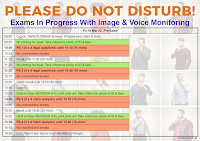
  • This is a detailed exam schedule for Pre-Exam (PE) 2022, indicating scheduled and unscheduled break times. 
  • Don't forget your calendars
  • External Resources at www.epo.org are available online during the exam. For all other materials, such as PCT Applicants Guide, you will need to have them on paper.
  • Be prepared to contact the invigilators by chat widget, and be prepared to deal with FLOWlock Browser crashes. Only in emergencies and if the chat widget is not available, call the epo helpdesk: +49 89 2399 5155. Telephone lines are very limited - the chat widget is strongly recommended. Communication via email will not be dealt with.
  • Last year, candidates received an e-mail with a hyperlink just before the exam. This year, no email will be sent - the flows will made available well before each of your exams, so you will see them after logging into WISEflow.
  • Get everything ready early so you can relax. It is recommended to log-in 60 minutes before the start of the first flow. This will also give enough time to make sure that the room requirements are complied with, and to create your own evidence.
  • Print BEFORE starting the FLOWlock Browser: 10 minutes before the start of the exam, any printable documents will appear on the flow page. Click on the refresh icon (clockwise arrow) or press F5 to see them. 
    • It is also possible to print using a second computer logged into WISEflow, but this second computer must be turned off and out of reach during the exam.
During the exam
  • Have a valid official photo ID (identity card or passport) ready and keep it within easy reach during the whole exam. You MUST verify your identity at the start of EACH FLOW by holding your ID next to your face for the entry photo. See Instructions to Candidates ITC IV, 6.
  • During the exam, you must to stay in front of the camera - everything you want to use must be within arms reach. 
  • Don't lose track of time ⏰ during the scheduled lunch break - if you are more than 10 minutes late, you may need the invigilator password to start the flow
  • During scheduled exam times and scheduled breaks, don't go online discussing the exam or share confidential exam info, such as personal login details & invigilator passwords. Wait until the scheduled end of the last part of each exam - after that, you can freely discuss. But remember - no-one knows the expected answers and which alternatives will be accepted.
Make sure you answer ALL the questions
  • If you are not sure of an answer, or you know it will take a long time to figure it out or to look it up, leave the question(s) until the end. But make sure you give an answer to each question before the end of the part.

Good luck!

Wednesday, December 30, 2020

eEQE 2021 Mock1 - Experience & Tips - PE & D1/D2


Updated 27 Jan 21: see post on using digital functionality more during exam. Updated 7 Jan 21. Based on Mock1, PE, D1 and D2 seem very doable with a small amount of practice. Important is to find the way that is most efficient for you that results in the fewest mistakes. It is a pity that no highlighting is available in D1/D2 - this would reduce the risk of mistakes. Concentrate on the content (as before) and dont be distracted by additional possibilities to make your answers look nice. Feel free to distribute any materials as long as you indicate the source. There is a separate post for A, B and C.

Hardware - laptop with screen disabled using Windows display settings, 27inch external monitor 1280x1080 connected via USB-C to HDMI converter

Software - Win10, Chrome browser. I created a new user account with user-only privileges (not administrator). But to start Lockdown Browser (Respondus v2.06.08 7 Aug 20), you need to enter administrator password when prompted. The only "problem" I encountered was that local copies (invigilator options in case of problems) were saved in the Downloads folder of the administrator account, not the user account.

General plus points:

  • Repeatedly opening and closing browser (and rebooting) did not affect the editor window - it retained the answer. 
  • Can open many tabs of assignments, zoom and search in them, allowing separate views of pages or parts of pages.
  • Copy/paste from tab useful for words and phrases 
  • PE: allows quick and intuitive highlighting of words & phrases in questions
General minus points:
  • Separate participations passwords are needed for each part, provided by email. But once Lockdown Browser starts, you can no longer read e-mails or print. Make sure you have the right ones available on paper for the whole exam (for split exams, there will be more than one).
  • Selection of specific text in tabs is sometime difficult - copy/paste frequently left pieces behind or copied too much. You waste time reformatting. I dont know if this is related to the pdf. 
  • For D no highlighting. For pages only available on-screen, impossible to keep track of what you used or noticed. 
  • Multiple tabs cannot be named or viewed side-by-side
  • Bug 1: max of 9 additional tabs (in addition to main tab). If you open 11th tab (10th additional tab), browser freezes and PC must be rebooted. It is also possible to click (i) in browser, select "Proctor Exit", and then enter Invigilator Password to exit.
  • Bug 2: with smaller screens (14 inch), tabs can be opened but not accessed as they are off screen. Max. 6 tabs visible on 14 inch screen. 
  • Only one view of your answer available, so for long answers (D2) you may need to scroll around.
Tips - PE
  • Print all the password emails before starting.
  • Use flags for uncertain questions and a sticky note summarizing your uncertainty. 
  • Use notepad to keep claims (or other text) visible during scrolling and/or moving between questions
  • Dont use drawing options - highlighting and sticky notes are superior
Tips - ME D
    • Print all the password emails before starting.
    • Use separate online tabs for at least the non-printable pages. For D, can use 1 tab for each non-printable page. With a 27-inch screen, full page view is easily readable.
    • If several tabs open, use (coloured) tabs on top edge of your monitor to indicate what each one is (Q or Page) so you can click quickly to what you want.
    • It is tempting, but dont copy too much text from assignment to answer to make it nice. 
    • For copy/paste in tabs, try selecting bottom up instead of top down before copying
    • CTRL keys work in answer - C, V, B, U, I etc. "Shift+arrow" works for selection
    • Dont waste time on nicely formatting your answer - use one header, use "-" and "1"etc instead of bullets and numbered lists, dont use font colors or text backgrounds (may be lost if text is converted further)
    • Dont put tables in answer - can just use TAB for aligned lists. They want to see arguments and explanation, not a table for which the interpretation is subjective. 
    • Make any analysis table/matrix/chart on paper - if you put in your answer, it will be slower, take up a lot of room (so you will have to scroll more). This is not getting any marks, so keep it brief and refer to paragraphs in the exam. 
    • Dont use drawing or Latex appendices - these are included as images in your answer and take up a lot of room.
    • Dont use drawing appendix for timelines - does not get marks, much slower than doing on paper.
    • Use a template for each answer, and put the headings in your answer. This prevents you forgetting things and allows you to quickly navigate.
    • Use one or two heading types in answer (Heading3 or Heading4) - this allows you to click on headings in Table of Contents to quickly jump (this worked the first time I used it, but when I went back the clicking did not work anymore).
    • To reduce risk of copying wrong details to paper overviews, read assignment in tabs and select dates or facts (as if you were going to copy) before you not them so that you do not lose your place, making it easier to double check.
    • You don't need complete sentences - answers can be given bullet-style to reduce scrolling.
    Suggested improvements:
    • Send one email with all participation passwords for a whole day in one e-mail
    • PE: Separate languages, not all three. Fix Completed status. Allow unselection of T/F.
    • PE: provide electronic version of assignment and calendars
    • PE: allow resizing of notepad window
    • ME: allow zooming of assignment preview
    • D1 & D2: provide electronic version of calendars
    • ME: allow highlighting of at least non-printable pages, preferably all pages
    • ME: clarify what is expected with drawing & Latex appendices. Drawing is slow way of answering. Text boxes can be inserted with drawings, but this is very slow. Is this to be encouraged? Will these be accepted as part of the answer?
    • ME: allow text-only appendices to be defined and inserted into answer. These would allow different sections of answer to be visible in different tabs.
    • ME: make sure hyperlinks in Table of Contents work reliably
    CLICK BELOW FOR MORE ABOUT PE, D1 & D2